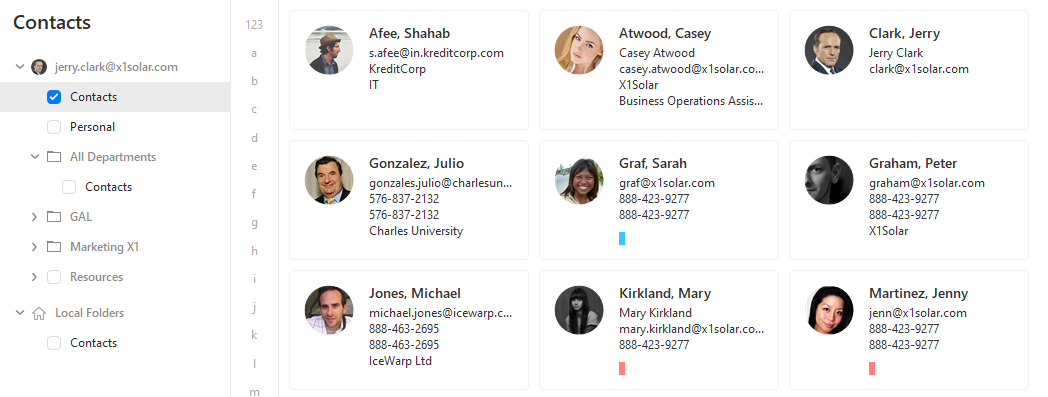
You can access your contacts by navigating to your specific accounts under the contacts bookmark in the Left Navigation Panel or in the Contacts section of the Sidebar. Browsing the Contacts bookmark will display your contacts in the main panel, browsing the Contacts section of the Sidebar will display your contacts in the Sidebar.
Main panel contact overview:
Once the contacts are listed, you can delete contacts by pressing delete on your keyboard or by clicking on the delete button on the toolbar, or you can drag and drop your contacts to any folders under your other accounts.
There are basically 3 ways how to pair your contacts:
1. Adding a chat contact to your contact list in Contact Card Window.
2. Pairing regular contacts to your chat contacts while using Contact Pairing Assistant.
3. Drag-and-dropping chat contact on regular contact and vice versa.
ad 1: Adding Chat contact to contact list via Contact Card Window
Double click on a contact to bring up the Contact CardWidow. In the Add Chatsection on the right hand side, click Add...(the cross sign) to add the Chat account(s) associated with this contact.
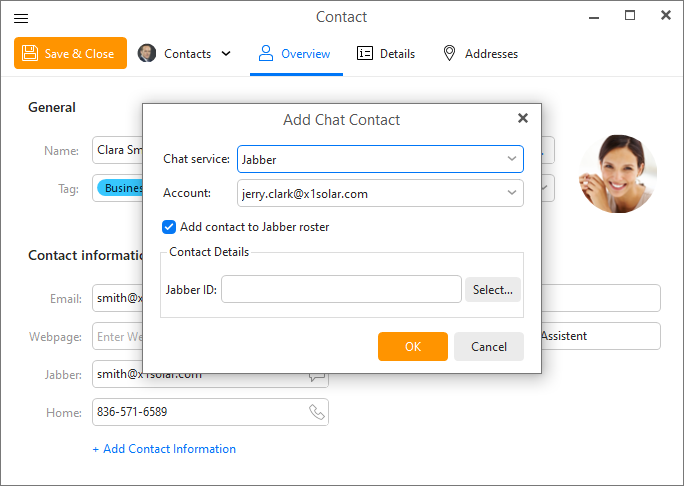
By clicking on the Add... button you will display following window:
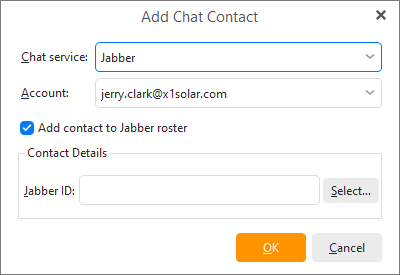
In the Chat service section you can select service from which you would like to pair a chat account with your regular account. Select "Jabber" if you know that for example an ICQ, MSN, AIM etc. account is set up on the particular chat account then the service will be ready to use. Please note that the list of services contains Jabber protocol services enlisted particularly - ICQ, MSN, AIM etc., which will not be ready to use, when you set them up for the regular account - your paired account will only contain information about the other ICQ, MSN, AIM account. Click on OK button to finish the process.
Also, please, note that if you select for example ICQ from the Contact Service list, you will be asked to type-in Contact ID manually.
ad 2: Pairing a contact card to an imported instant messaging contact
When you log on to your Jabber service for the first time, you will be prompted to import your contacts.
Later you can select Chat Contacts Pairing Assistantin chat settings option. Following window will pop up:
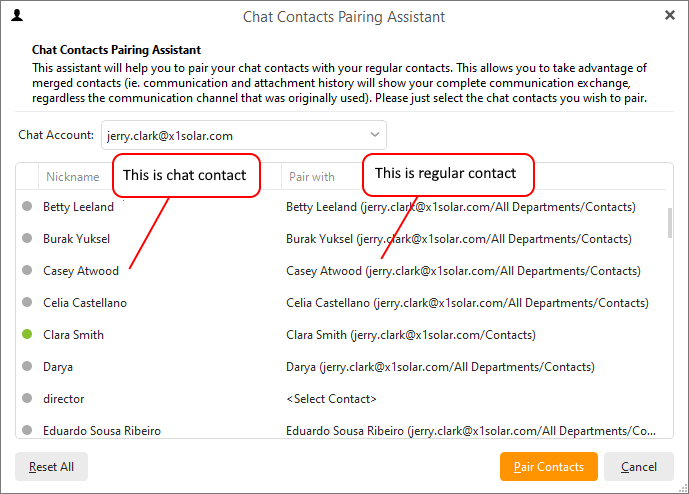
After you have selected the Chat account from which you wish to import your contacts, all the contacts contained in this chat contact list will be displayed in the list below.
To pair a particular chat contact with a regular contact, select a regular contact by clicking on it to bring out a drop down list (you can see it in the picture below). There are two other options on this list:
Take no Action- nothing happens with the chat contact
New Contact- creates a new contact in the selected folder and pair the chat contact with this new contact.
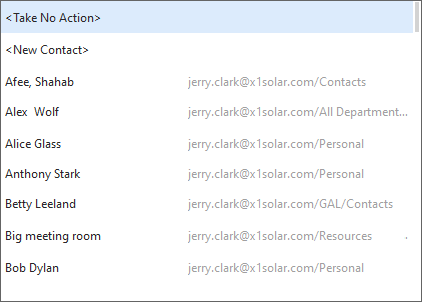
Once you have chosen the regular contact, click on Pair Contacts to pair the Chat contact with a regular contact. Now the process of contact pairing is complete.
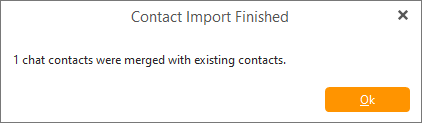
Please note that there is also an easier way - just drag a contact (a Chat contact) and drop it on the contact you wish to pair it with (we are speaking about contacts in the Contact list/Chat bar). You will be prompted to confirm the pairing with the following window:
Contact Properties
To get to the contact properties window, right-click on particular contact folder and select Properties...
Following window will appear:
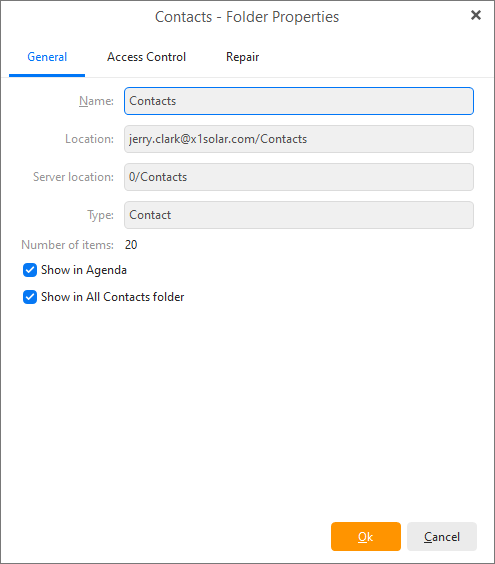
Here you can customize your contacts' display, you can select up to two options - Show in Agenda and Show in All Contacts folder.
If you check Show in Agenda, events such as birthdays of the users from particular contact folder will be displayed in agenda.
If you check Show in All Contacts Folder, particular contacts from selected folder will be also displayed in All Contacts folder. By un-checking this option, the particular contacts will not be shown in All Contacts folder.